Your Tasmota and Shelly switches, one tap away.

A free Android app that finds every Tasmota and Shelly switch, plug and lamp on your Wi-Fi in seconds. Switch them, group them, and give them timers that follow sunrise and sunset.

No cloud, no account, no ads, no device limit. Free and open source.
Works with Tasmota and Shelly; OpenBeken partly.

What is this about?

  1. Smart plugs and switchesSome lamps and plugs have a tiny computer inside, with Wi-Fi. Many run the free program Tasmota, others are Shellys with their own software. This app works with both.OpenBeken devices partly work too.
  2. They talk over your Wi-FiJust like your phone, they are connected to the Wi-Fi in your house.
  3. This app is the remote controlIt finds them by itself. Tap a picture and the lamp goes on. Tap again and it goes off.
  4. The switch remembersTell it "on when it gets dark, off at 11". It keeps doing that, even when your phone is off.
  5. It all stays at homeNo company in between, no account, nothing sent over the internet. No dead devices when a company stops its support or goes bankrupt: your switches keep working.

No IT degree needed.

Home Assistant is powerful,
but you need a server, add-ons and YAML,
and loads of time to configure and maintain it.

This app is NOT a replacement for Home Assistant,
but for people who want some easy home automation.

This app needs nothing:
install it, tap Scan, and switch.

If you can use a TV remote,
you can use this app.

Enjoy easy home automation!

The timers live in the switch.

Set them once in the app. After that the switch runs them by itself, even when your phone is off or out of the house.

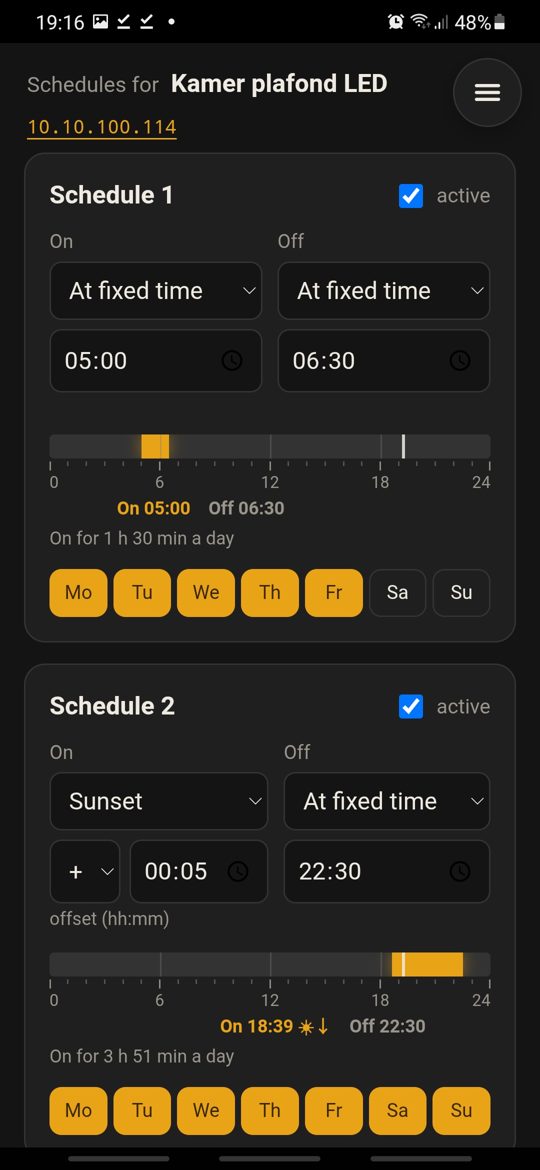
Each switch holds up to 8 on/off schedules. Use a fixed time, or sunrise and sunset with an offset, and pick the days.

An easy intuitive visual preview shows every schedule on a 24-hour timeline: the yellow line is daylight, from sunrise to sunset, and the orange block is when the switch is on. You see right away if it fits. Obsessed: wasted time on time setting 😉

Well, 1 million+ Shelly app users
waste more time on hard-to-set schedules. 😮

Garden lights

☀↑ 07:41   ☀↓ 17:02

Two schedules of the garden lights. Schedule 1: on at 06:30, off at sunrise 07:41, on weekdays. Schedule 2: on 15 minutes before sunset at 16:47, off at 23:00, every day.

Schedule 1active
On 06:30Off 07:41 ☀↑

On for 1 h 11 min a day

MoTuWeThFrSaSu
Schedule 2active
On 16:47 ☀↓Off 23:00

On for 6 h 13 min a day

MoTuWeThFrSaSu

Copy schedules between devices: set them once, then copy them to another switch. Even from a Tasmota to a Shelly, and back.

Everything for your Tasmota and Shelly devices, in one small app.

Under 250 KB, starts in a moment, and talks straight to your devices over your own Wi-Fi.

  • Finds them in seconds

    Scans your network and lists every Tasmota and Shelly device with its name and address. Recognises them by MAC address when their address changes.

  • Timers with sunrise and sunset

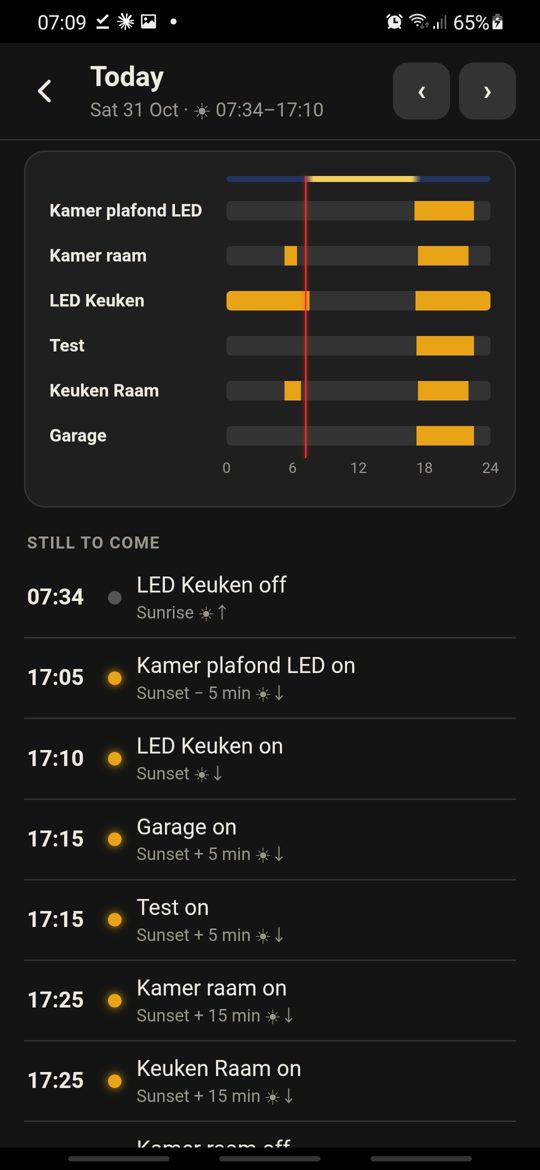
    Up to 8 on/off schedules per switch, stored in the switch. See everything that switches today at a glance.

  • Groups and scenes

    Switch a whole room at once, or set a mood like Movie night with one tap: some lights on, others off.

  • Lamps

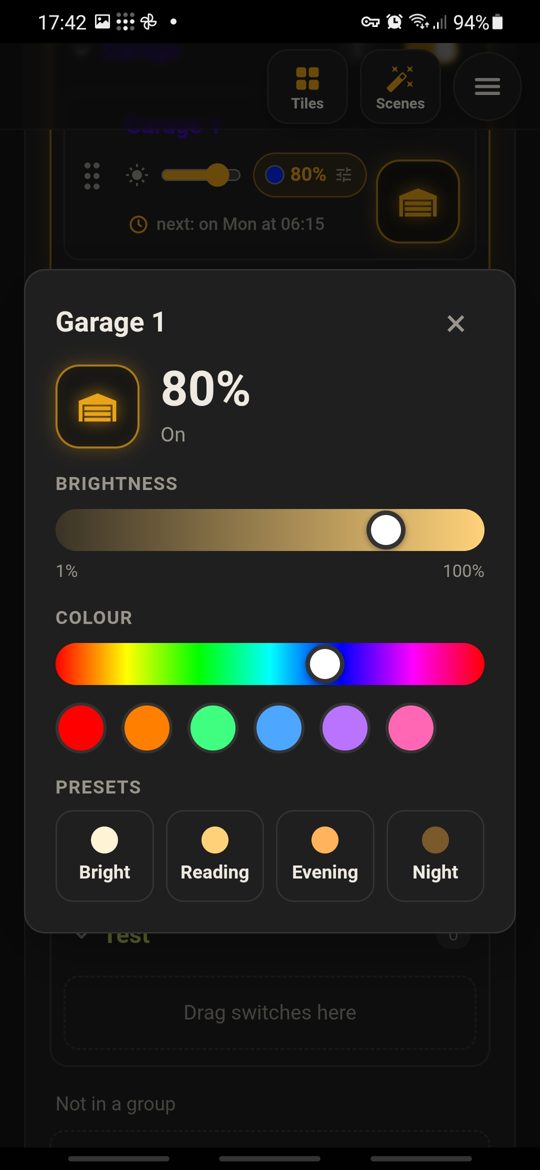
    Brightness, warm to cool white, and colour for Tasmota lights and LED strips.

  • Tiles and widgets

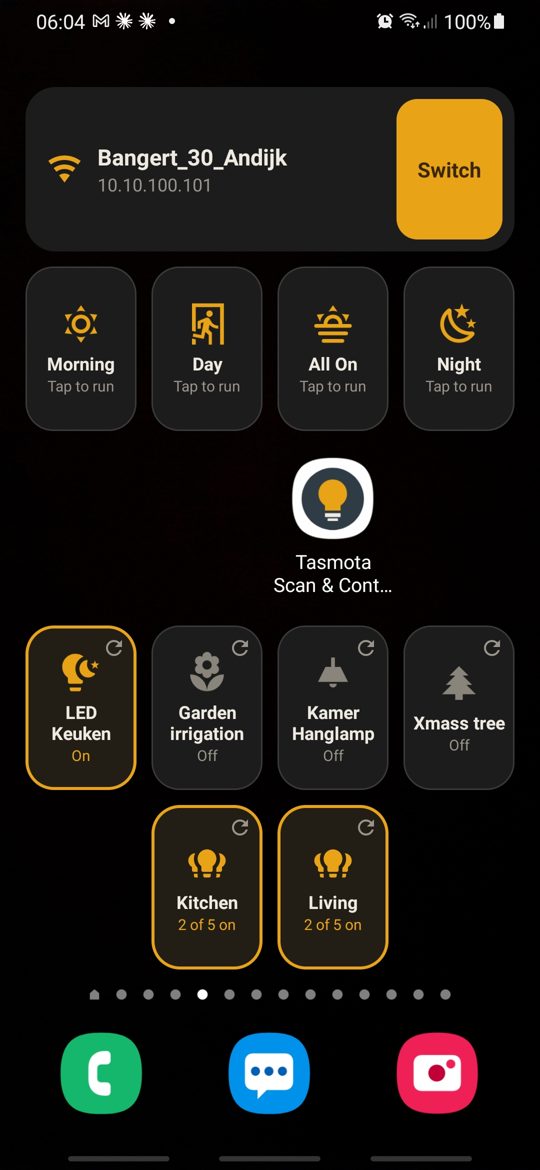
    Big tiles in the app, and switches, groups and scenes right on your home screen.

  • Add new devices

    Wi-Fi provisioning for Tasmota, device inclusion for Shelly: both straight from the app. No browser, no Shelly app, no cloud account.

  • Auto-off

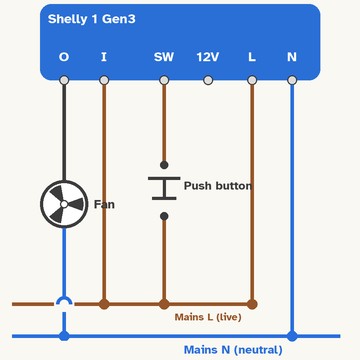
    Let a switch turn itself off after a set time, like a bathroom fan or a heater. It runs in the switch, so it also works when you press the button on the device itself. Cards, tiles and widgets count down.

  • Energy use

    Plugs with a power meter show how many watts they use right now, on the card and the tile.

  • Wall panel

    Turn a spare phone or tablet into a control panel: the screen stays on, dims by itself, and fills the whole screen. It doubles as the Tailscale VPN server for control from anywhere.

  • From anywhere

    Reach your switches away from home with Tailscale VPN, without opening ports on your router.

See how it works.

A video says more than a thousand words. Short videos with spoken explanation, filmed in the live demo.

Sorry!, Nerd Alert Section 🤓 (Skip)

Brainstorm, insane in the membrane

Please let me sleep 😴
Ideas we are thinking about.
They are not in the app yet.

Idea: your old tablet as the thermostat on the wall

Give an old tablet a second life.
(Or a good reason to buy a new tablet and reuse the old.)
On the wall it shows the room temperature in big numbers, a 🔥 when the boiler is heating, and big Boost and Away buttons that everyone in the house can tap. The thermostat itself runs in the Shelly, so the heating keeps working even when the tablet is off.

With the same easy-to-set schedules you’re already familiar with.

Example: the thermostat as a script in the Shelly
Not tested yet. A first idea, not in the app.

// Simple thermostat for a Shelly Gen2/Gen3 with the Sensor Add-on (DS18B20)
// EXAMPLE, NOT TESTED YET: try it with a lamp on the relay before you connect the boiler.
//
// Paste on the Shelly's own web page: Scripts -> Create script -> paste -> Save -> Start.
// Turn on "Run on startup" so it starts again after a power cut.
// Watch what it does in the log under the script (lots of console.log lines),
// or open the log page in Chrome to copy it: http://<shelly-ip>/script/<script-number>/log
// (the exact address is in the first log line).

let CFG = {
  dryRun: true,          // TEST MODE: only log what it would do, never switch the relay
  sensors: [100, 101],   // Add-on sensor ids; use [100] for one sensor
  setpoint: 20.0,        // default room temperature (°C), can be changed via KVS "th_set"
  hyst: 0.3,             // heat below 19.7, stop above 20.3
  frost: 5.0,            // frost guard: always heat below this, even when "off"
  maxDiff: 1.5,          // warn if two sensors differ more than this
  minSwitchSec: 180,     // at least 3 minutes between switching (protects the boiler)
  everySec: 30,          // check every 30 seconds
  watchdogSec: 600       // safety: the Shelly turns the relay off by itself after 10 min
                         // if the script stops refreshing it (script hangs or is stopped)
};

let state = { heating: false, lastSwitch: 0, mode: "on", round: 0 };  // mode: "on" or "off" (KVS "th_mode")

// keep the last log lines in memory for the log page (small: the Shelly has little memory)
let LOG = [];
let LOG_MAX = 60;
// one decimal, rounded the same way everywhere (26.55 -> "26.6")
function f1(x) {
  return (Math.round(x * 10) / 10).toFixed(1);
}

function log(msg) {
  console.log("[thermostat] " + msg);
  let up = Shelly.getComponentStatus("sys").uptime;
  LOG.push(up + "s " + msg);
  if (LOG.length > LOG_MAX) LOG.splice(0, LOG.length - LOG_MAX);
}

// log page: http://<shelly-ip>/script/<script-number>/log  (plain text, easy to copy)
HTTPServer.registerEndpoint("log", function (req, res) {
  res.code = 200;
  res.headers = [["Content-Type", "text/plain; charset=utf-8"]];
  res.body = "Thermostat log (last " + LOG.length + " lines, newest at the bottom)\n\n" + LOG.join("\n") + "\n";
  res.send();
});

// read the settings the app could write in KVS (the Shelly's own storage)
function loadSettings() {
  log("reading settings from KVS ...");
  Shelly.call("KVS.Get", { key: "th_set" }, function (r, err) {
    if (err) { log("KVS th_set not found (error " + err + "), keep setpoint " + CFG.setpoint); return; }
    if (r && r.value !== undefined) {
      let v = Number(r.value);
      if (v >= 5 && v <= 30) {
        if (v !== CFG.setpoint) log("setpoint changed: " + CFG.setpoint + " -> " + v + " °C");
        CFG.setpoint = v;
      } else {
        log("KVS th_set = " + r.value + " is out of range (5-30), ignored");
      }
    }
  });
  Shelly.call("KVS.Get", { key: "th_mode" }, function (r, err) {
    if (err) { log("KVS th_mode not found, keep mode " + state.mode); return; }
    if (r && (r.value === "on" || r.value === "off")) {
      if (r.value !== state.mode) log("mode changed: " + state.mode + " -> " + r.value);
      state.mode = r.value;
    } else {
      log("KVS th_mode = " + (r ? r.value : "?") + " is not on/off, ignored");
    }
  });
}

// room temperature: the average of the sensors that give a value, or null
function roomTemp() {
  let vals = [];
  for (let i = 0; i < CFG.sensors.length; i++) {
    let id = CFG.sensors[i];
    let st = Shelly.getComponentStatus("temperature", id);
    if (st && typeof st.tC === "number") {
      log("sensor " + id + ": " + f1(st.tC) + " °C");
      vals.push(st.tC);
    } else {
      log("sensor " + id + ": NO VALUE (not connected, wrong id or broken?)");
    }
  }
  if (vals.length === 0) return null;
  if (vals.length === 2) {
    let diff = Math.abs(vals[0] - vals[1]);
    log("difference between sensors: " + f1(diff) + " °C");
    if (diff > CFG.maxDiff) log("WARNING: sensors differ more than " + CFG.maxDiff + " °C");
  }
  let sum = 0;
  for (let i = 0; i < vals.length; i++) sum += vals[i];
  let avg = sum / vals.length;
  log("room temperature (average of " + vals.length + "): " + f1(avg) + " °C");
  return avg;
}

function setHeating(on, why) {
  if (on === state.heating) {
    log("heating stays " + (on ? "ON" : "OFF") + " (" + why + ")");
    return;
  }
  let now = Shelly.getComponentStatus("sys").uptime;
  let since = now - state.lastSwitch;
  // switching off for safety is always allowed; otherwise wait the minimum time
  if (why !== "safety" && state.lastSwitch > 0 && since < CFG.minSwitchSec) {
    log("want heating " + (on ? "ON" : "OFF") + " but last switch was " + since + " s ago, wait until " + CFG.minSwitchSec + " s");
    return;
  }
  if (CFG.dryRun) {
    log("TEST MODE: would turn heating " + (on ? "ON" : "OFF") + " (" + why + "), relay NOT switched");
  } else {
    log("switching heating " + (on ? "ON" : "OFF") + " (" + why + ")" + (on ? ", watchdog " + CFG.watchdogSec + " s" : ""));
    let args = on ? { id: 0, on: true, toggle_after: CFG.watchdogSec } : { id: 0, on: false };
    Shelly.call("Switch.Set", args, function (r, err, msg) {
      if (err) log("ERROR switching relay: " + err + " " + msg);
      else log("relay switched " + (on ? "ON" : "OFF") + ", was " + (r && r.was_on ? "ON" : "OFF"));
    });
  }
  state.heating = on;
  state.lastSwitch = now;
}

// watchdog: while heating, set "on, and off again after watchdogSec" every check.
// Each refresh starts the timer over; if the script stops, the Shelly switches off by itself.
function refreshWatchdog() {
  if (!state.heating) return;
  if (CFG.dryRun) { log("TEST MODE: would refresh watchdog (" + CFG.watchdogSec + " s)"); return; }
  Shelly.call("Switch.Set", { id: 0, on: true, toggle_after: CFG.watchdogSec }, function (r, err, msg) {
    if (err) log("ERROR refreshing watchdog: " + err + " " + msg);
    else log("watchdog refreshed: relay turns off by itself in " + CFG.watchdogSec + " s if the script stops");
  });
}

function check() {
  state.round++;
  // compare with the real relay: it may have been switched by hand, by the watchdog or a schedule
  if (!CFG.dryRun) {
    let sw = Shelly.getComponentStatus("switch", 0);
    let real = !!(sw && sw.output);
    if (real !== state.heating) {
      log("relay is " + (real ? "ON" : "OFF") + " but script thought " + (state.heating ? "ON" : "OFF") + " (switched by hand, watchdog or schedule?)");
      state.heating = real;
    }
  }
  log("---- check " + state.round + " · setpoint " + CFG.setpoint + " °C · mode " + state.mode +
      " · heating " + (state.heating ? "ON" : "OFF") + (CFG.dryRun ? " · TEST MODE" : "") + " ----");
  let t = roomTemp();
  if (t === null) {                       // no sensor works: heating off
    log("no temperature at all: heating off for safety");
    setHeating(false, "safety");
    return;
  }
  if (t < CFG.frost) {                    // frost guard always wins
    log("below frost guard " + CFG.frost + " °C");
    setHeating(true, "frost");
    refreshWatchdog();
    return;
  }
  if (state.mode === "off") {
    setHeating(false, "mode off");
    return;
  }
  let low = CFG.setpoint - CFG.hyst, high = CFG.setpoint + CFG.hyst;
  log("heat below " + f1(low) + " °C, stop above " + f1(high) + " °C");
  if (t < low) setHeating(true, f1(t) + " < " + f1(low));
  else if (t > high) setHeating(false, f1(t) + " > " + f1(high));
  else log(f1(t) + " °C is between " + f1(low) + " and " + f1(high) + ": no change (heating stays " + (state.heating ? "ON" : "OFF") + ")");
  refreshWatchdog();
}

// start: read the relay as it is now, then check every 30 s (settings every 5 min)
let wifi = Shelly.getComponentStatus("wifi");
log("log page: http://" + (wifi && wifi.sta_ip ? wifi.sta_ip : "<shelly-ip>") + "/script/" + Shelly.getCurrentScriptId() + "/log");
let sw = Shelly.getComponentStatus("switch", 0);
state.heating = !!(sw && sw.output);
log("script started · relay is " + (state.heating ? "ON" : "OFF") + " · sensors " + JSON.stringify(CFG.sensors) +
    " · check every " + CFG.everySec + " s · watchdog " + CFG.watchdogSec + " s" + (CFG.dryRun ? " · TEST MODE (relay is never switched)" : ""));
loadSettings();
Timer.set(CFG.everySec * 1000, true, check);
Timer.set(300 * 1000, true, loadSettings);
check();
Drag the corner to resize ↘

Download .js

Example log from a real Shelly 1 Gen3 with two DS18B20
Test mode: the script only writes what it would do. It is warm in the room, so the heating stays off.

Thermostat log (last 47 lines, newest at the bottom)

2842s log page: http://192.168.1.50/script/1/log
2842s script started · relay is OFF · sensors [100,101] · check every 30 s · TEST MODE (relay is never switched)
2842s reading settings from KVS ...
2842s ---- check 1 · setpoint 20 °C · mode on · heating OFF · TEST MODE ----
2842s sensor 100: 26.2 °C
2842s sensor 101: 26.9 °C
2842s difference between sensors: 0.7 °C
2842s room temperature (average of 2): 26.55 °C
2842s heat below 19.7 °C, stop above 20.3 °C
2842s heating stays OFF (26.5 > 20.3)
2842s KVS th_set not found (error -105), keep setpoint 20
2842s KVS th_mode not found, keep mode on
2872s ---- check 2 · setpoint 20 °C · mode on · heating OFF · TEST MODE ----
2872s sensor 100: 26.2 °C
2872s sensor 101: 26.7 °C
2872s difference between sensors: 0.5 °C
2872s room temperature (average of 2): 26.45 °C
2872s heat below 19.7 °C, stop above 20.3 °C
2872s heating stays OFF (26.4 > 20.3)
2902s ---- check 3 · setpoint 20 °C · mode on · heating OFF · TEST MODE ----
2902s sensor 100: 26.2 °C
2902s sensor 101: 26.9 °C
2902s difference between sensors: 0.7 °C
2902s room temperature (average of 2): 26.55 °C
2902s heat below 19.7 °C, stop above 20.3 °C
2902s heating stays OFF (26.5 > 20.3)
2932s ---- check 4 · setpoint 20 °C · mode on · heating OFF · TEST MODE ----
2932s sensor 100: 26.2 °C
2932s sensor 101: 26.8 °C
2932s difference between sensors: 0.6 °C
2932s room temperature (average of 2): 26.50 °C
2932s heat below 19.7 °C, stop above 20.3 °C
2932s heating stays OFF (26.5 > 20.3)
2962s ---- check 5 · setpoint 20 °C · mode on · heating OFF · TEST MODE ----
2962s sensor 100: 26.2 °C
2962s sensor 101: 26.9 °C
2962s difference between sensors: 0.7 °C
2962s room temperature (average of 2): 26.55 °C
2962s heat below 19.7 °C, stop above 20.3 °C
2962s heating stays OFF (26.5 > 20.3)
2992s ---- check 6 · setpoint 20 °C · mode on · heating OFF · TEST MODE ----
2992s sensor 100: 26.2 °C
2992s sensor 101: 26.9 °C
2992s difference between sensors: 0.7 °C
2992s room temperature (average of 2): 26.55 °C
2992s heat below 19.7 °C, stop above 20.3 °C
2992s heating stays OFF (26.5 > 20.3)

Real screens from real switches.

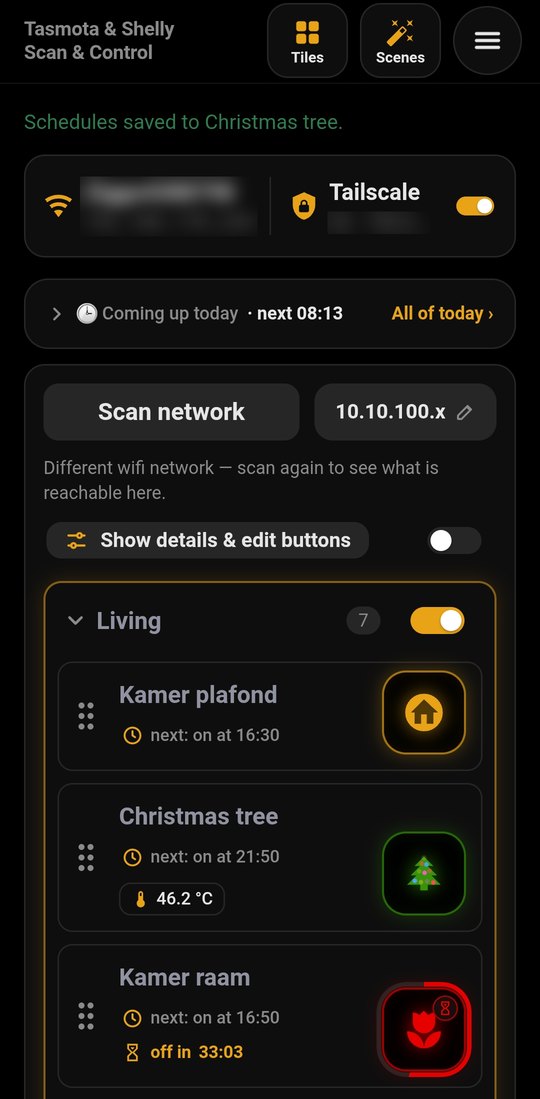
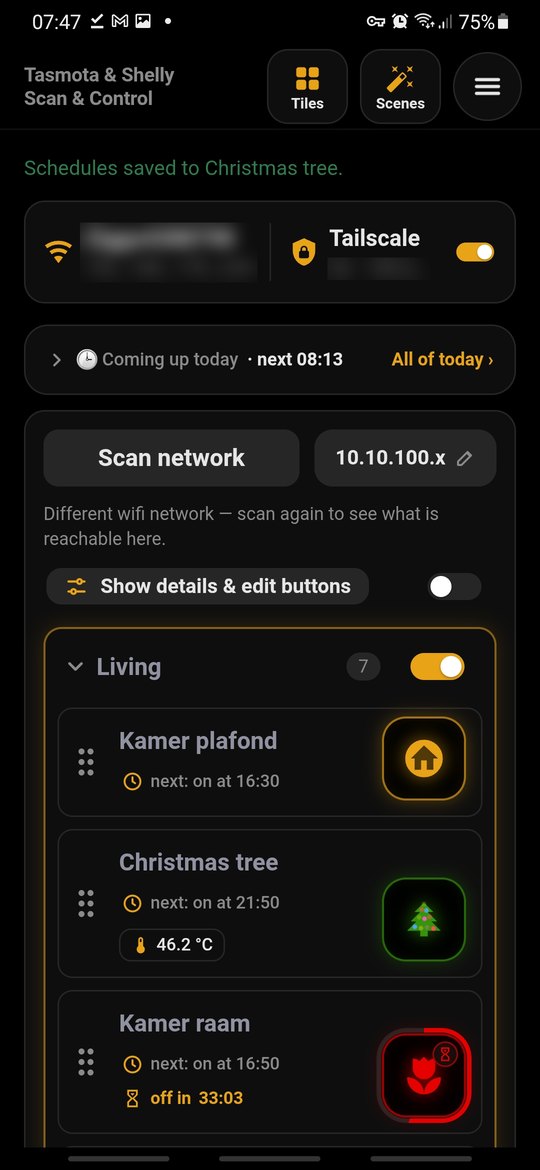
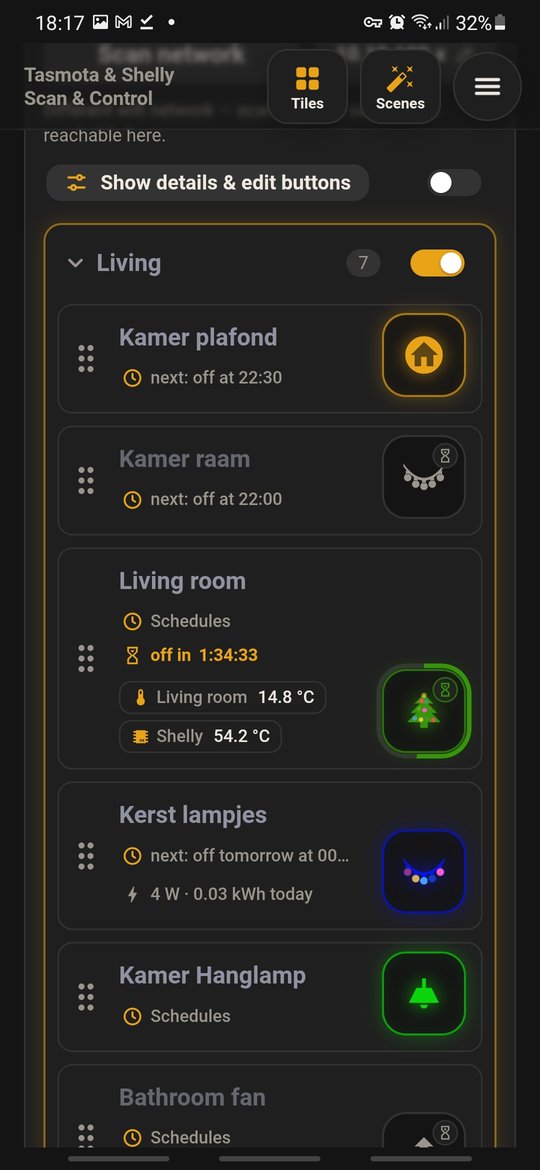
Tasmota and Shelly side by side: a Shelly Christmas tree between Tasmota lamps, in one room.
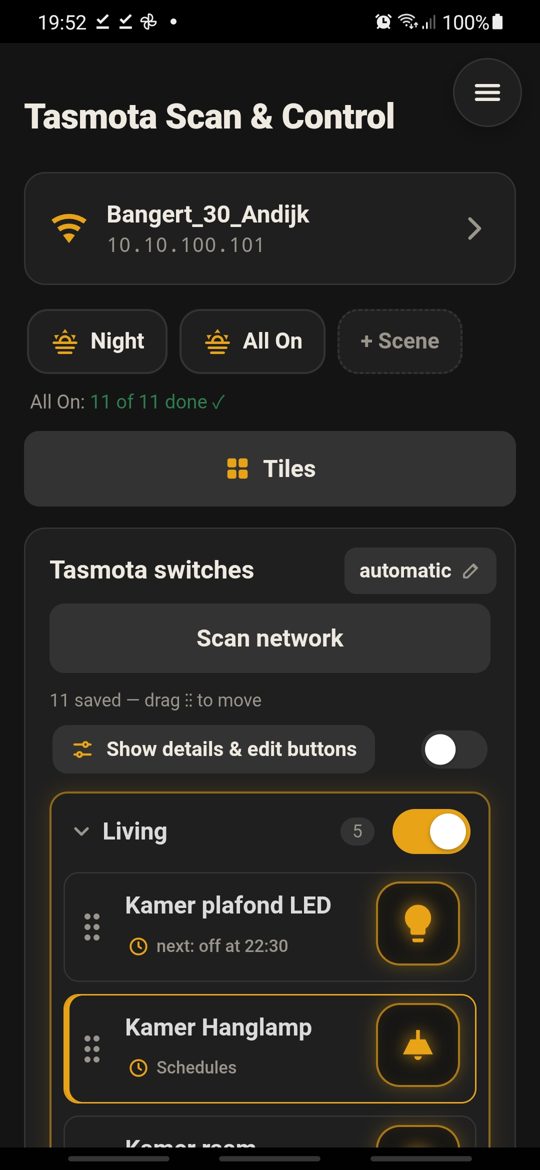
Main screen: Wi-Fi and Tailscale side by side, what switches today, and your switches by room.
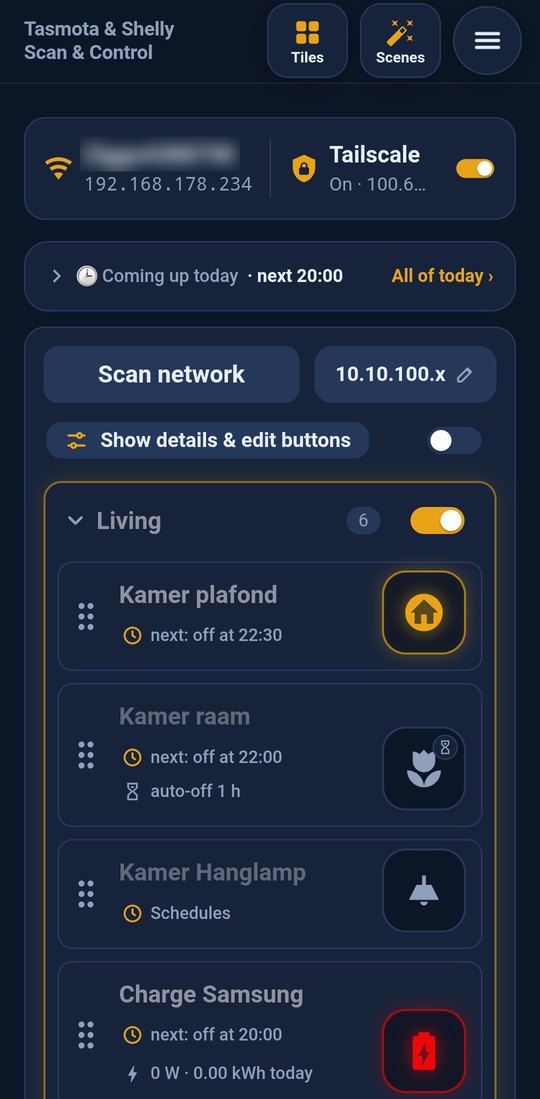
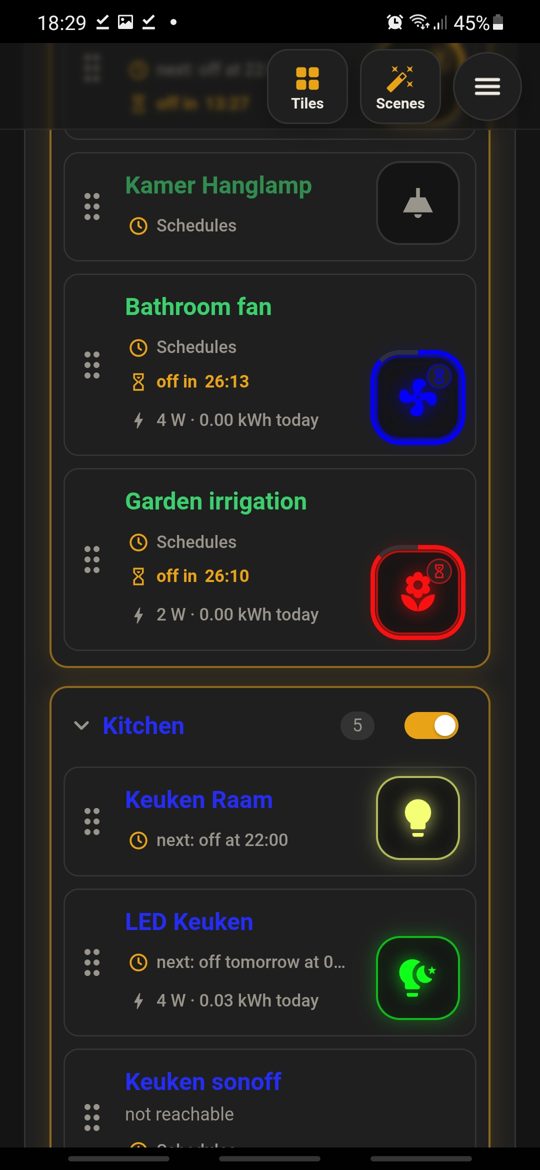
Switches with their own icons and on-colours, auto-off countdowns and energy use
Own icons and colours, auto-off countdown and energy use.
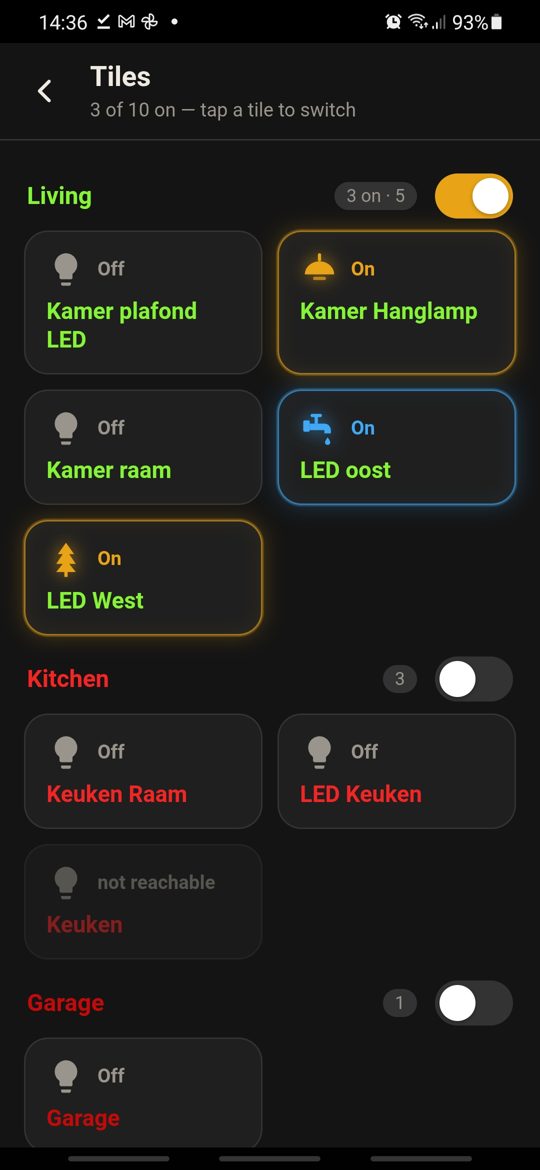
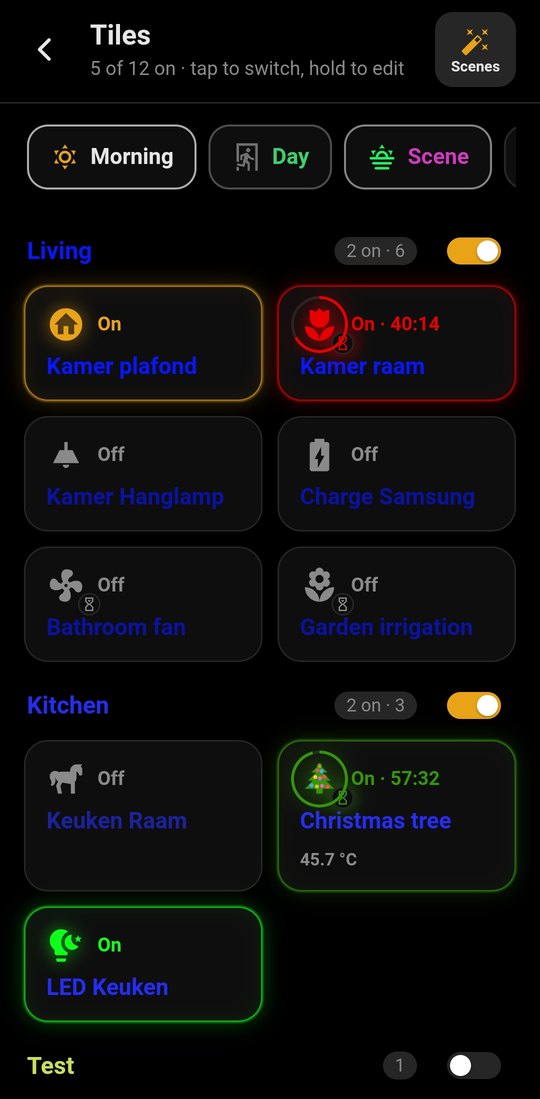
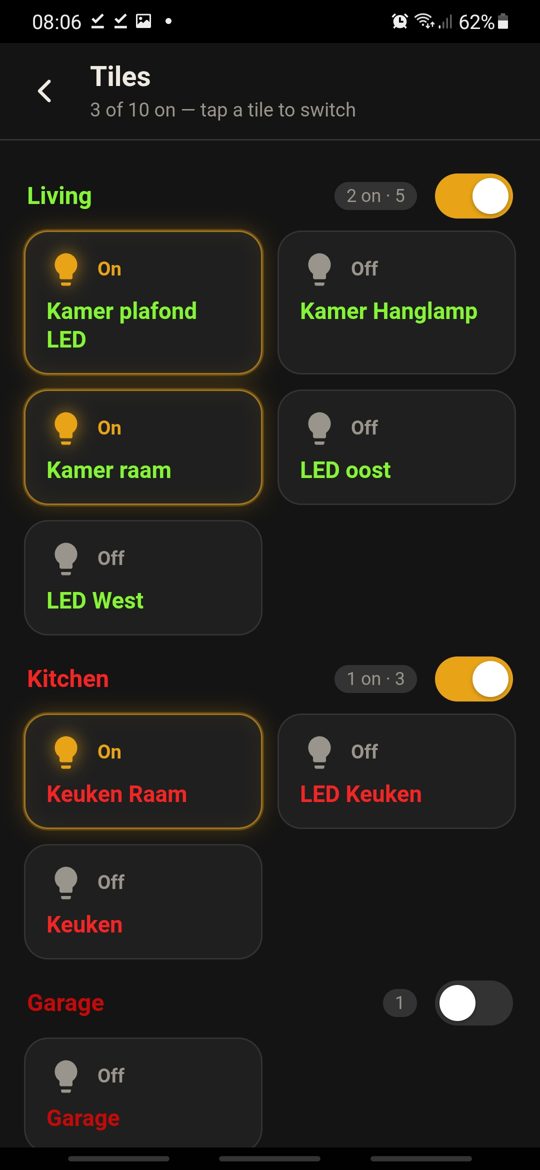
Tiles screen with coloured groups and switches that are on and off
Big tiles, grouped by room.
Schedules of a switch with a timeline bar
8 schedules per switch, with a day bar.
Today overview: everything that switches today
Today: everything that switches.
Scenes screen and a scene widget
Scenes, also as a widget.
Light window with brightness, colour and presets
Brightness and colour for lamps.
Home screen widgets for Wi-Fi, scenes, switches and groups
Home screen widgets.
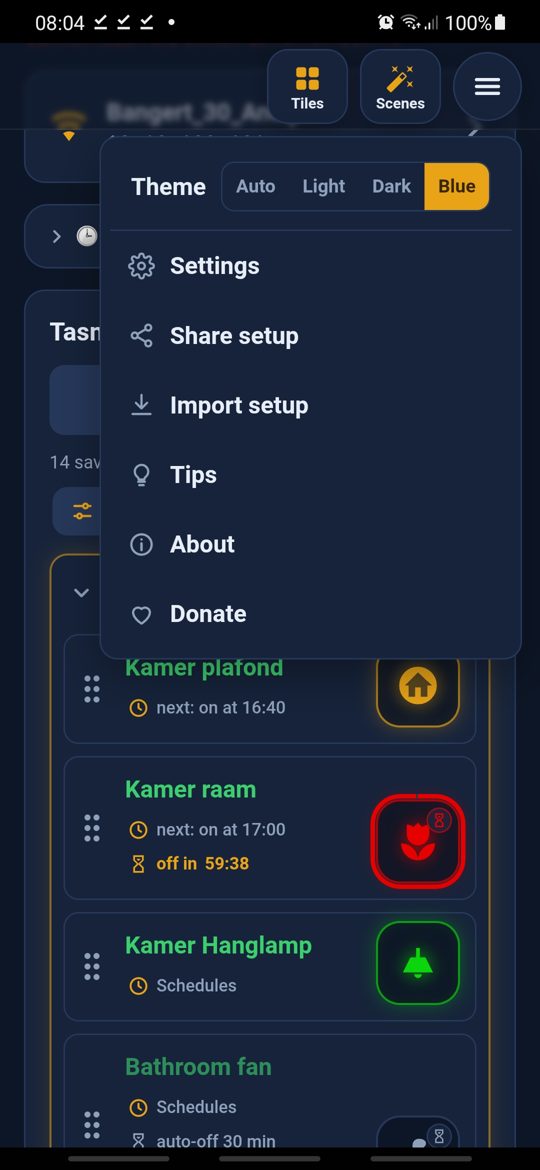
Theme choice in the menu
Seven themes, including black for OLED.

A wall panel from a spare phone or tablet (kiosk mode)

Kiosk mode turns an old phone or tablet into a fixed panel for your switches. Keep the screen on, let it dim after a few minutes, hide the Android bars and make the app the home screen. One tap wakes it up.

It also makes the ideal Tailscale VPN server: a phone or tablet on the wall stays at home, on the charger and awake, so you can control your switches from anywhere.

How to set it up   Watch the video (1.5 min)
The app's menu with the theme choice

Your switches, from anywhere

An old phone or tablet at home runs Tailscale VPN. Your own phone connects to it from anywhere, privately, and the app switches as if you were home.

Read the Tailscale VPN guide
The app away from home with the Tailscale card switched on

Your switches stay yours.

The app talks straight to your devices over your own Wi-Fi. There is no account to make, no server in between, no ads and no tracking.

The source code is on GitHub for anyone to read, and GitHub builds the app you download from exactly that source.

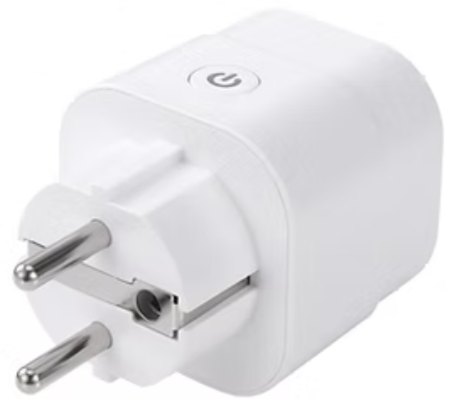
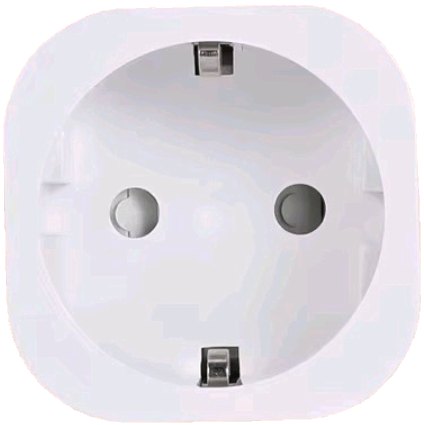
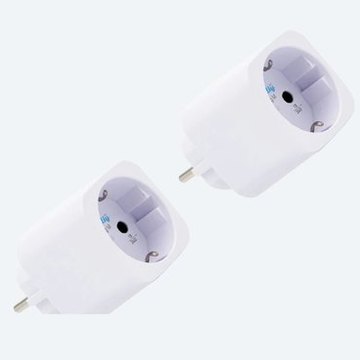
Plugs with Tasmota already on them.

No soldering and no flashing: these EU plugs come with Tasmota installed and some measure their energy use. Plug in, add them with the app, done.

Make sure you buy the Tasmota version.
The same plugs are also sold with other software, like Tuya, eWeLink or ESPHome. Those need their own app, and this app can't find them.
Zigbee plugs don't use Wi-Fi at all and need a separate hub.
Look for "Tasmota" in the product name.

Shelly
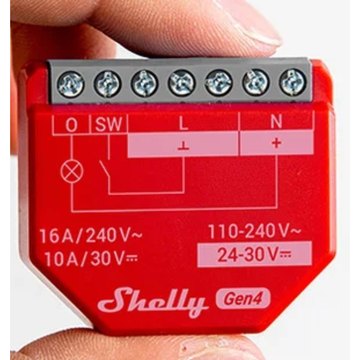
Shellys with their own firmware partly work: switches and bulbs, on/off, brightness, white and colour, schedules, rename and auto-off.
Tested on a real Shelly 1 Gen3. Bulbs and other models: not yet.

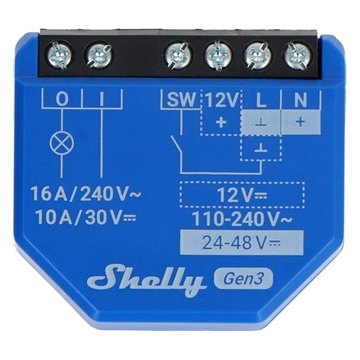
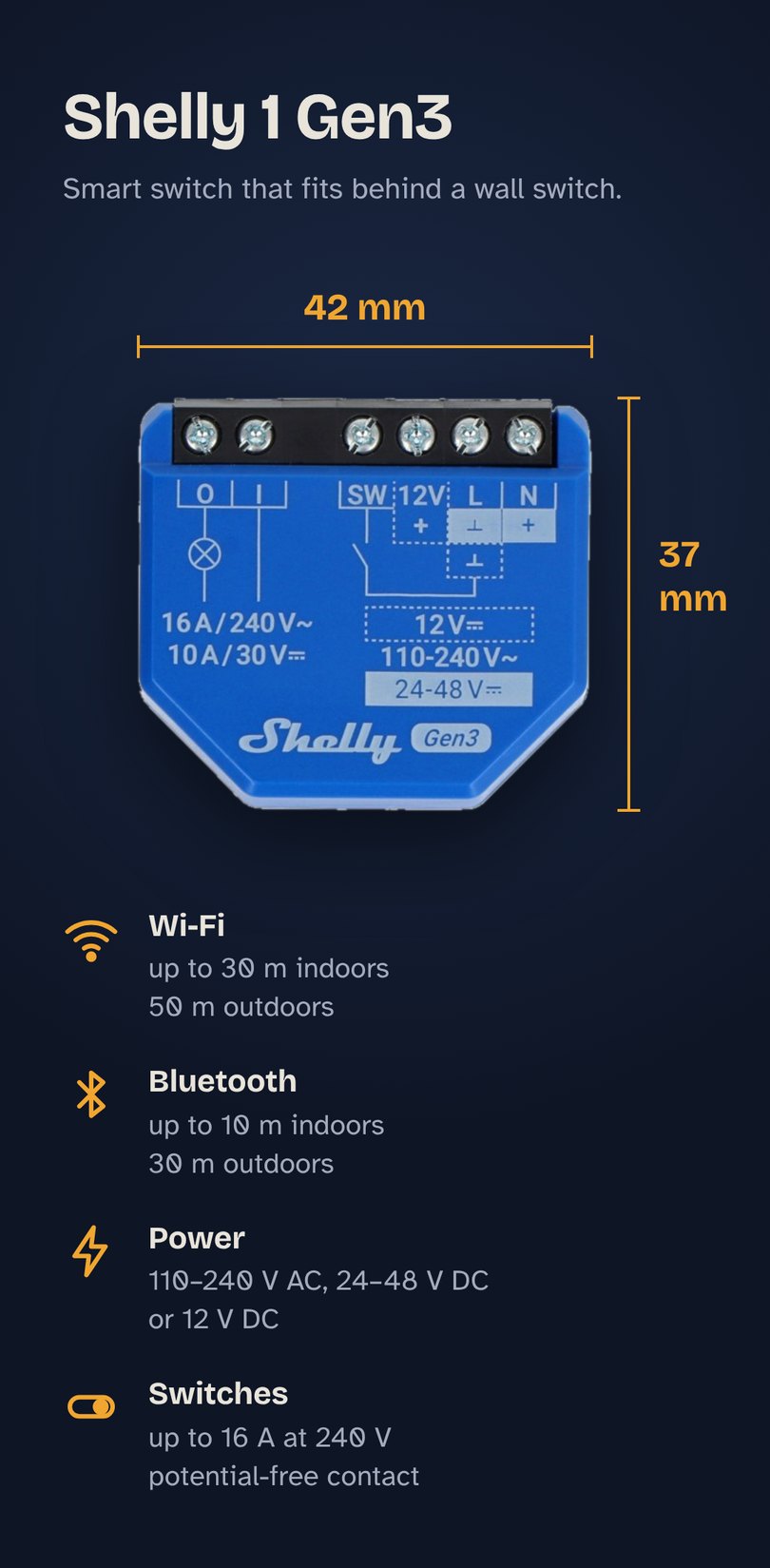
Shelly 1 Gen3: tested

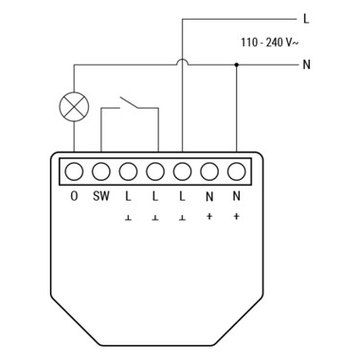
Shelly 1PM Gen3 and Gen4: on their way

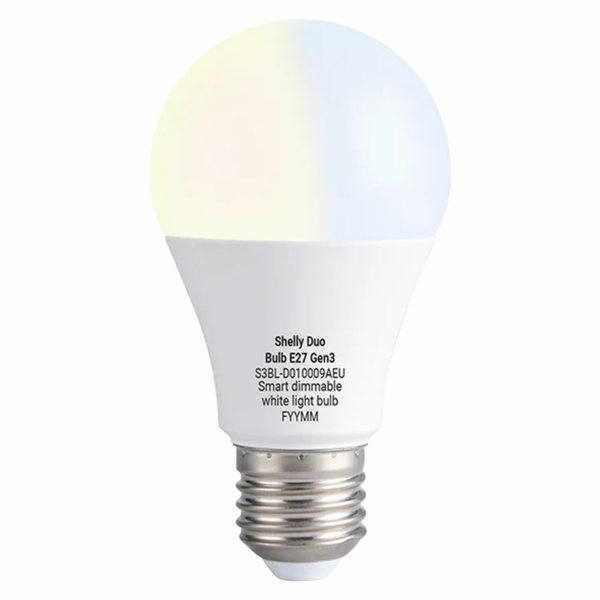
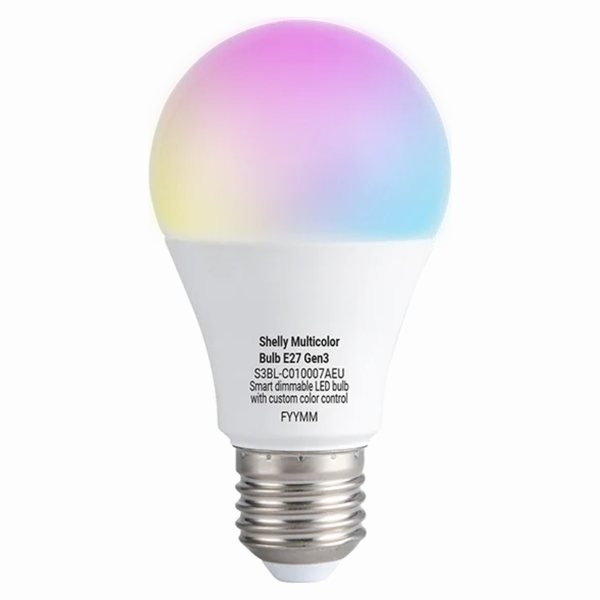
Shelly bulbs: on their way

Shelly plugs: on their way

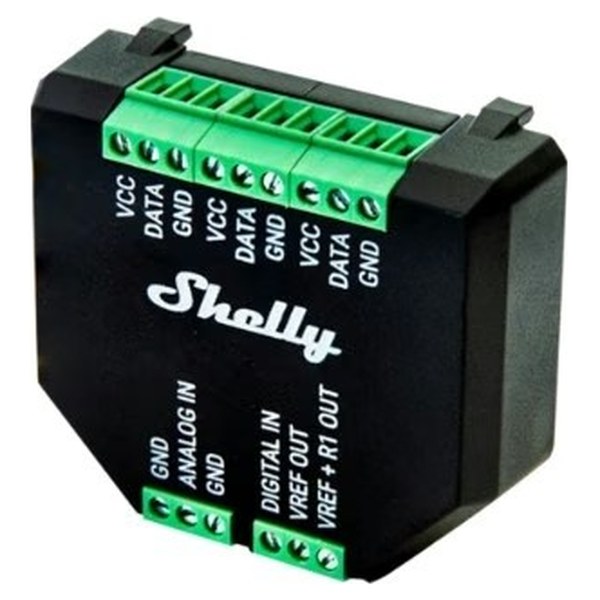
Shelly Plus Add-on: on their way

First test on a real Shelly 1 Gen3

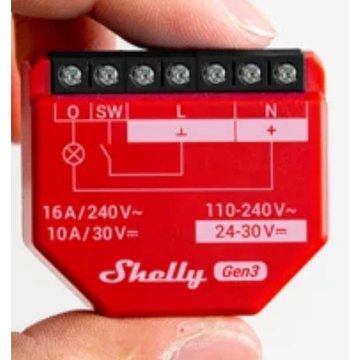
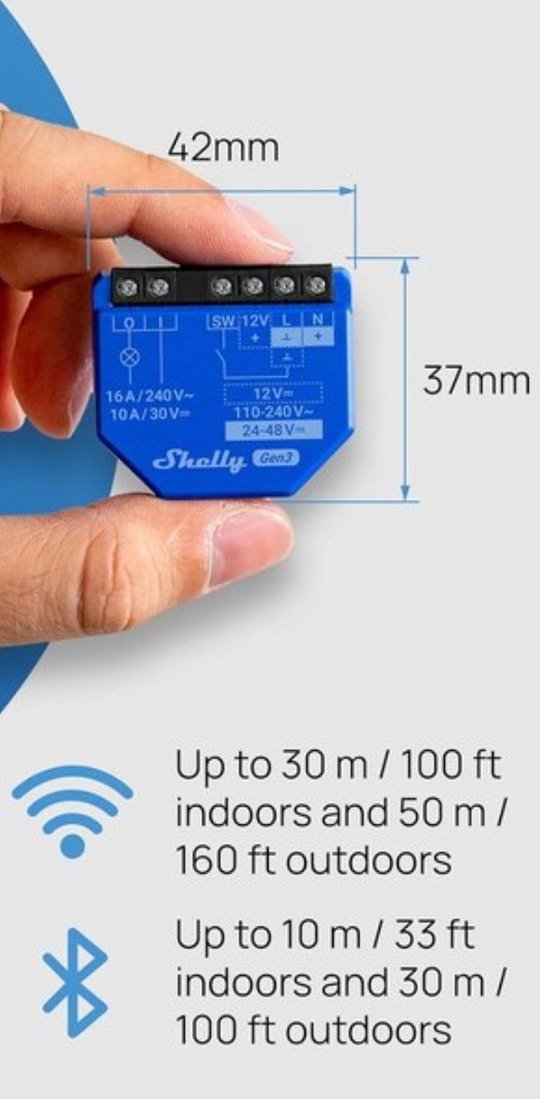
Shelly 1 Gen3: only 42 × 37 mm, fits behind a wall switch.
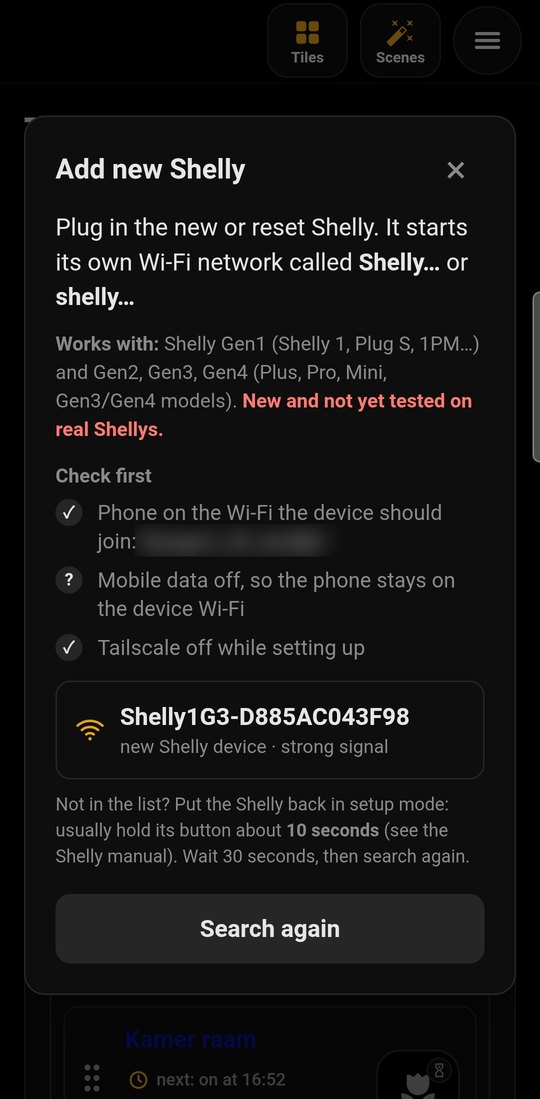
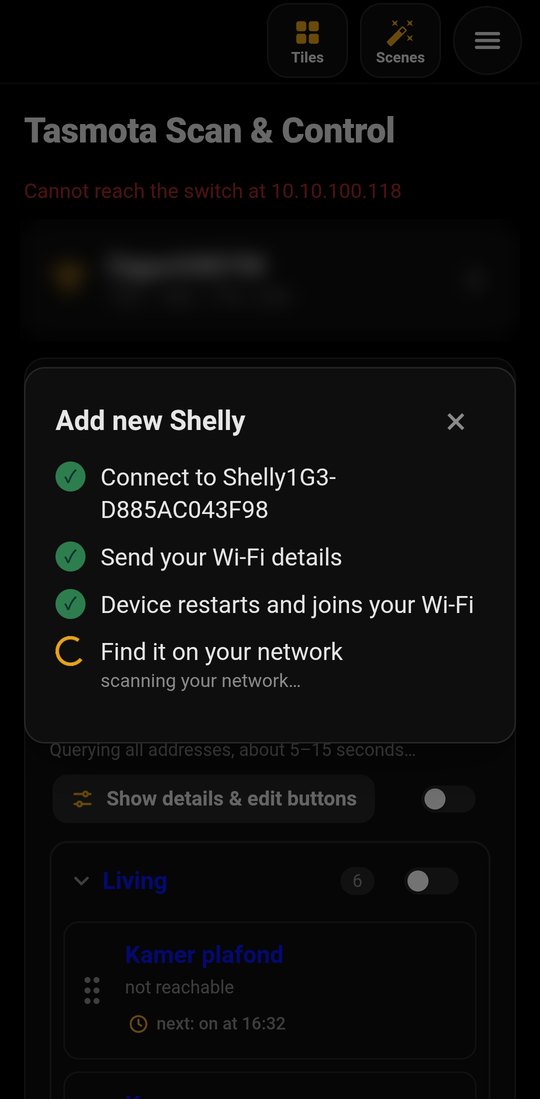
Add new Shelly finds the Shelly's own Wi-Fi.
The app gives it your Wi-Fi.
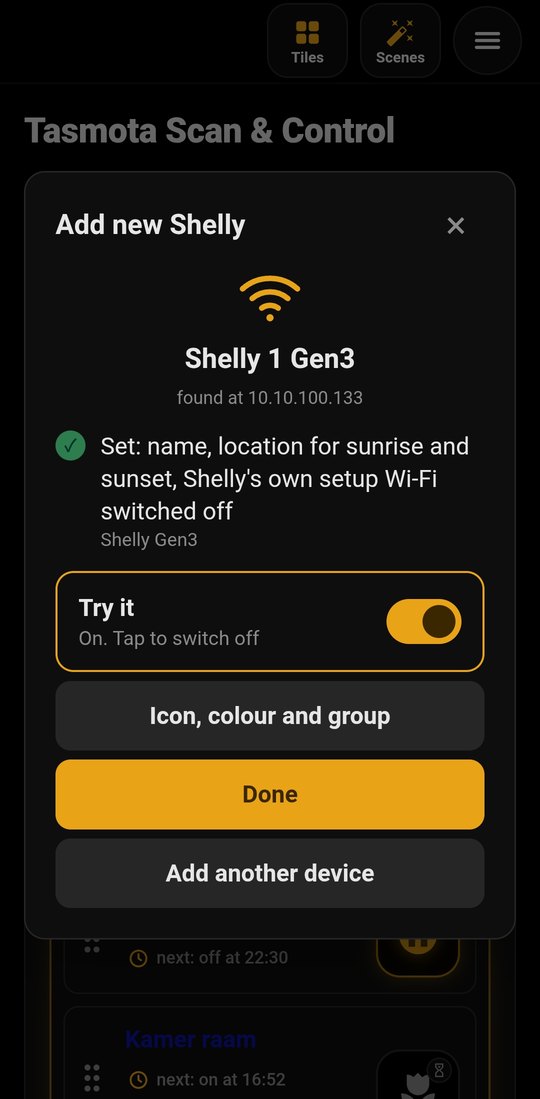
Found on your network. Try it.
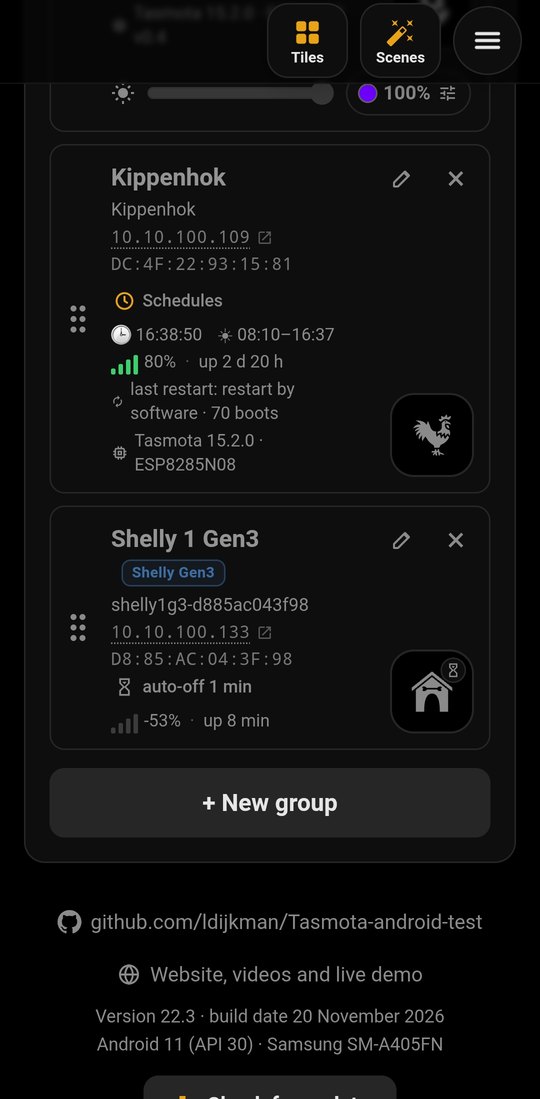
The card: Gen3 badge, IP, auto-off and signal.
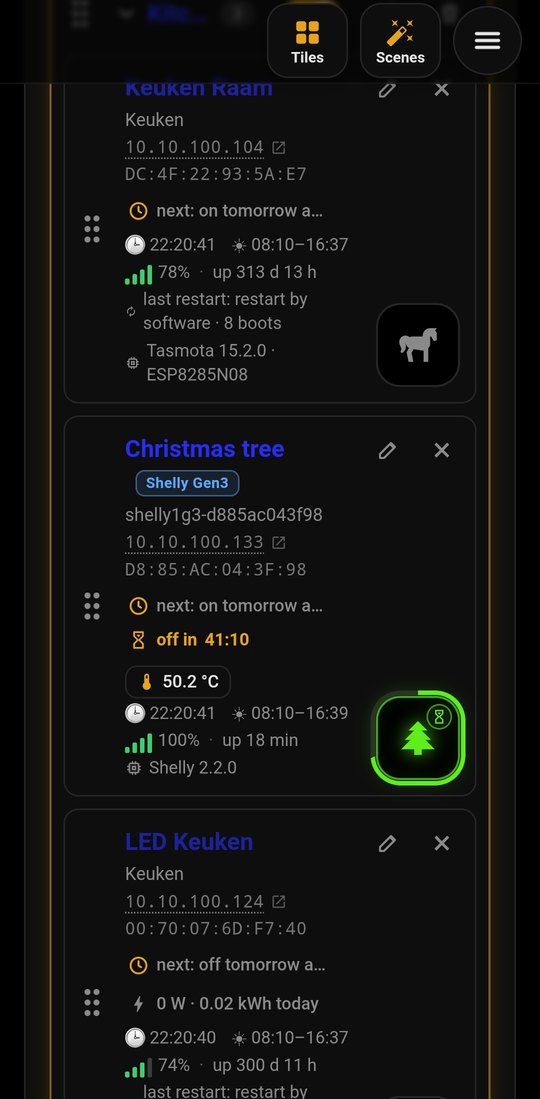
Christmas tree on a Shelly: temperature, firmware 2.2.0 and the auto-off countdown.
Sensor Add-on with a DS18B20: the room temperature and the Shelly’s own temperature, each on its own line.
Gimmick: a Christmas tree icon with twinkling lights, here in Tiles on the Shelly. 🎄
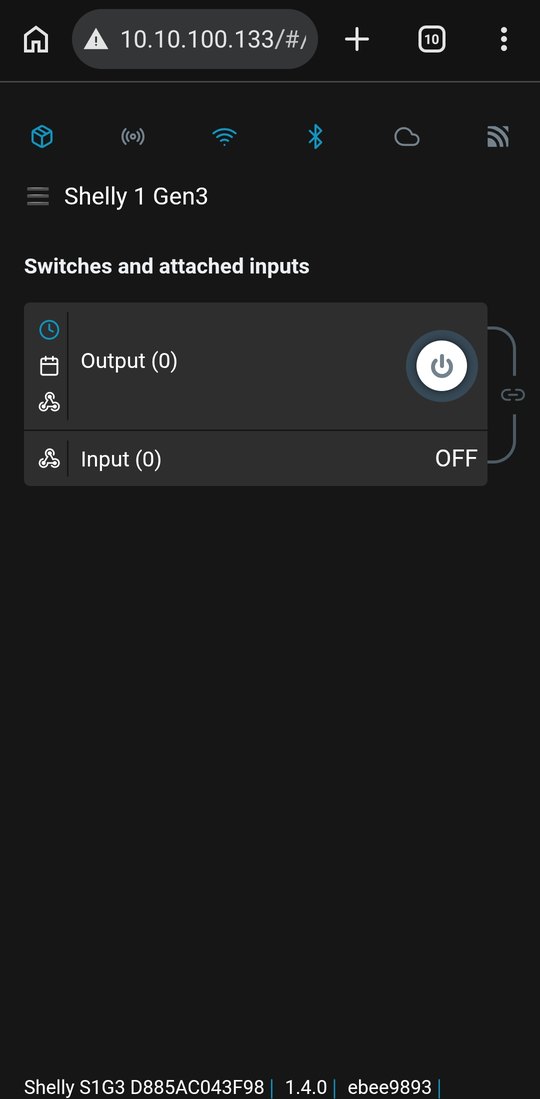
Tap the IP for the Shelly's own page.
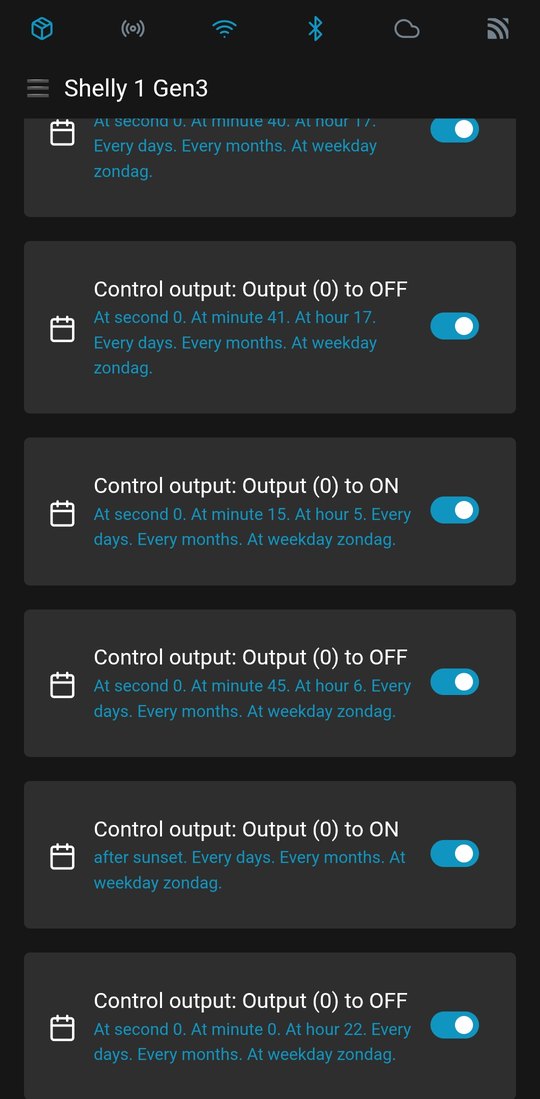
Shelly's own page on firmware 1.4.0: hard to read. Migraine! 🤯 Version 2.2.0 is much clearer.
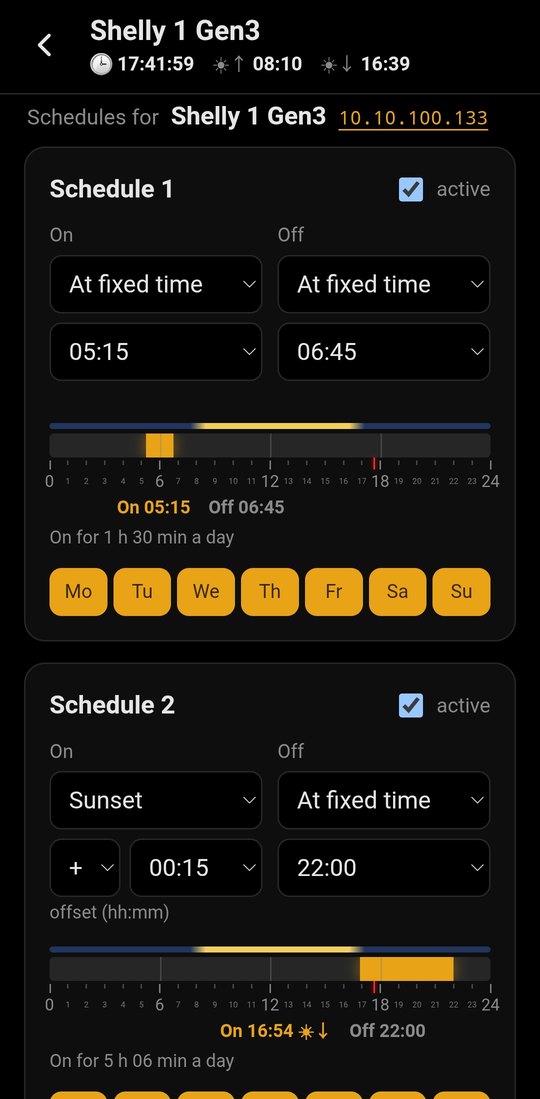
The same schedules in this app: clear cards and a timeline.
Shelly 1 Gen3 in the hand: really that small.

Fun fact:
Shelly was started by two Bulgarians,
Dimitar Dimitrov and Svetlin Todorov, in Sofia.
The first Shellys came out in 2018.
More than 30 million have been sold since.
In 2026 Schneider Electric offered
€1.2 billion for the company.
(Looking at the admin page timers
and the schedule JSON, I think
Tasmota is worth double. 😉)
(Update: after firmware 2.2.0
on my Shelly 1 Gen3, the schedule page
makes a tiny bit of sense. 😉)

For Nerds 🤓
Not directly compatible, but you can flash Tasmota on it.
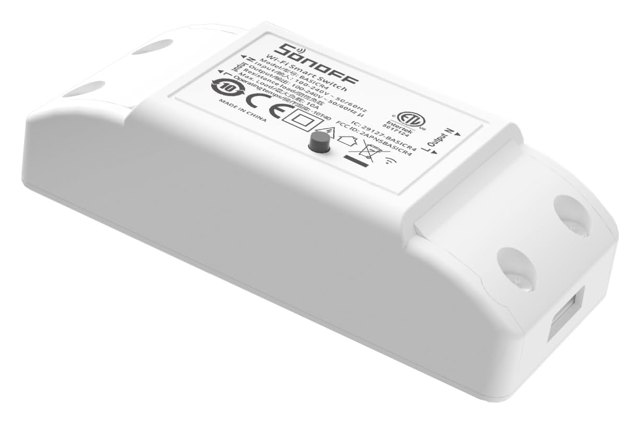
Sonoff Basic R3 / R4 Wi-Fi inline switch

Sonoff Basic R4 Wi-Fi switch

Nerds like me flash Tasmota themselves. 🤓

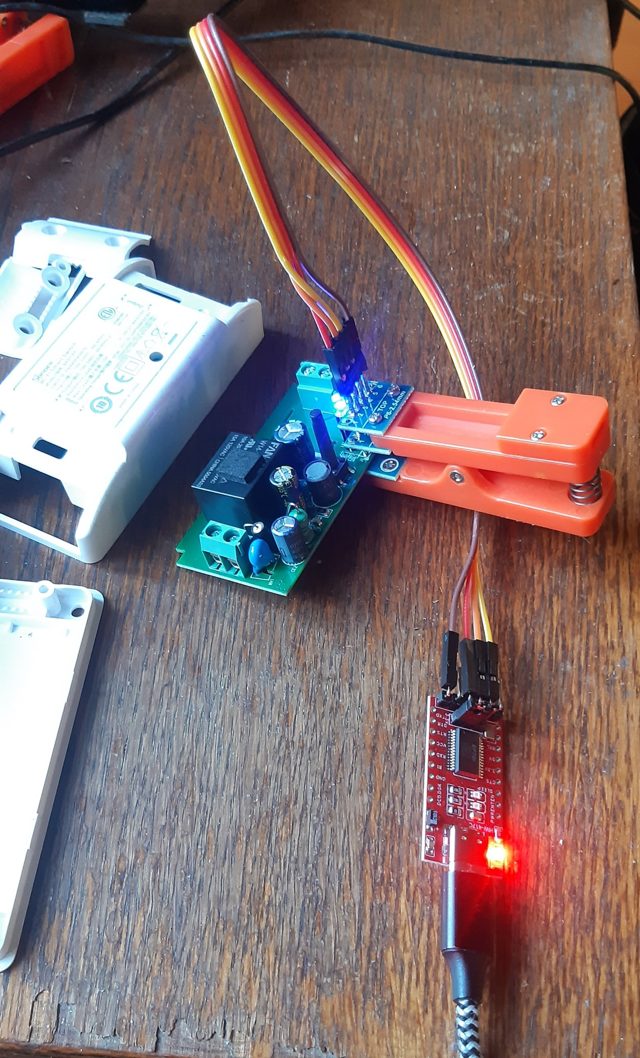
Flashing Tasmota on a Sonoff Basic R4 (ESP32-C3) with a USB-to-serial adapter and a pogo pin clip

Replacing the Sonoff eWeLink software with Tasmota:
no more Chinese cloud and software I don’t like.

Fun fact:
Tasmota started on Sonoff in January 2016.
The name means
Theo Arends Sonoff MQTT OTA.
(Over The Air)
SonOff, a switch.

Open the Tasmota web installer

Questions people ask.

Something else? Ask it on GitHub.

Which devices work?

Any device that runs Tasmota firmware: Sonoff, Athom and other plugs, relays, wall switches, lamps and LED strips with an ESP8266 or ESP32 chip.

Shelly devices with their own firmware: Gen2 and newer (Plus, Pro, Mini, Gen3, Gen4) with switching, bulbs, schedules and auto-off; Gen1 partly.

Devices with other firmware, such as eWeLink or Tuya, need Tasmota installed first.

Does my lamp go via a server in China?

No, your lamp stays home. When you tap a switch, the signal travels a few metres over your own Wi-Fi, straight from your phone to the switch. Many smart home apps first send it to a cloud server, sometimes on the other side of the world, and then back again, just to switch on the lamp right next to you. With this app, the trip to the lamp is shorter than the trip to the fridge.

Which phones can run it?

Android 7 or newer. Adding a brand-new device from the app needs Android 10 or newer. There is no iPhone version, but you can try the live demo in any browser.

Why is it not in the Play Store?

I make this app alone, in my spare time. Getting a new app into the Play Store means paying a fee, an identity check, and first finding 12 testers who keep it installed for 14 days. That is a lot of hassle for a free hobby app. So you download it straight from GitHub instead.

Android warns about installing it. Is it safe?

The app is not in the Play Store, so Google Play Protect has not seen it before. You can let Play Protect scan it first, or install without scanning. The full source code is public on GitHub, and GitHub itself builds the download from that source. Since 21 November 2026 I am a Google-registered developer, and the app is registered with Google’s Android developer verification. On most phones Android no longer asks to scan it.

Watch the install video (1.5 min)

Does it work with OpenBeken or Shelly?

OpenBeken devices partly work: switching does, schedules do not. Shelly devices work fully when they run Tasmota firmware.

New and untested: the app can now also find Shelly devices with their own firmware, switch them on and off, set brightness, white and colour on Shelly bulbs, rename them and set their auto-off, and add a new Shelly to your Wi-Fi (Gen1 to Gen4). Tested on a real Shelly 1 Gen3. Schedules work too on Gen2 and newer (same schedule cards, with sunrise and sunset), stored in the Shelly itself. Energy for Shelly is not there yet.

Why not use the Shelly app?

You don’t have to choose. Both apps can be on your phone and control the same Shelly.

The Shelly app is made by Shelly itself. It works with every Shelly, and only with Shelly. Also when you are away from home, and with Alexa or Google Home. You need a Shelly account for it.

This app is smaller and simpler. No account. Everything stays in your home. Your Tasmota and Shelly switches are on one screen.

They work side by side. Switch the lamp on in one app, and the other app shows it on too. Auto-off and schedules are stored in the Shelly itself, so they keep working, whichever app you used.

Note: this app makes schedules as on/off pairs: one on time and one off time per schedule. Schedules you make in the Shelly app may not show up in this app, but they keep working in the Shelly.

A good mix: the Shelly app to set up a new Shelly, this app for every day.

Why does it ask for my location?

For sunrise and sunset times, which the app sends to your switches. Android also needs location permission before an app can see nearby Wi-Fi names. Your location only goes to your own switches.

What is a VPN?

A VPN (virtual private network) is a private, encrypted connection between your own devices over the internet. With Tailscale VPN, your phone away from home connects to an old phone or tablet at home, as if you were on your home Wi-Fi. Only your own devices can use it, and you don't need to open any ports in your router. Tailscale is free for personal use.

Read the Tailscale VPN guide

How do I get updates?

Scroll to the bottom of the main screen and tap Check for update. The app downloads the newest version from GitHub and installs it.

How many switches can I add?

As many as you like. There is no limit on switches, groups, scenes or widgets, and no paid version that unlocks more. Only Tasmota itself has a limit: up to 8 on/off schedules per switch.

What does it cost?

Nothing. No ads, no in-app purchases, no subscription.

If you like the app, a small donation is greatly appreciated.

Donate via PayPal

You can also find Donate in the app's menu.

Fun fact:
Tasmota and Shelly share the same roots:
both started on the ESP8266,
a cheap Wi-Fi chip from Espressif.
Espressif was founded in Shanghai in 2008
by Teo Swee Ann from Singapore.
The ESP8266 came out in 2014,
and over 1.5 billion of their chips have been sold.

Fun fact:
The ESP8266 started as a 2-dollar Wi-Fi modem,
controlled with AT commands
from the 1980s telephone modem era.
At first, the documentation was hard to find,
and only in Chinese.
Hobbyists found out it could run its own programs,
and Tasmota and Shelly grew from that.

More: from modem to small computer
  • 2014: the ESP-01 board was first used as a cheap Wi-Fi add-on for an Arduino. The Arduino sent it AT commands, just like a modem.
  • Late 2014: Espressif released an official SDK, and NodeMCU appeared, which let you program the ESP8266 itself in the Lua language. This was the first big step from “modem” to “small computer”.
  • 2015: Ivan Grokhotkov made the ESP8266 Arduino core. From then on you could program the ESP8266 directly from the Arduino IDE, without an Arduino board at all. That’s what made it explode in popularity.
  • Tasmota is built on that ESP8266 Arduino core, so it grew out of the Arduino world.

Ideas, questions, feedback?

Missing a feature, found a bug, or want to show your wall panel? Tell us in GitHub Discussions. Every idea is read, and many features in the app started as a question.

You need a free GitHub account to post.

Try it on your own switches tonight.

Star it on GitHub

Like the app? Tap Star at the top of the GitHub page. It's free, and it helps other people find the app.

Latest app changes

25 November · 25.4 – 25.6

22 November · 25.3

21 November · 23.8 – 25.2

20 November · 22.1 – 23.7

19 November · 21.1 – 22.0

18 November · 19.9 – 21.0

All changes on GitHub

Why free?

I made this app for my own home, for fun. I’m a handy guy with the lowest possible education, and I like home automation that just works. If it helps you too, that makes me happy.

Why no tracking?

The app talks to your own switches on your own Wi-Fi. No analytics: nothing about you or your home is sent anywhere. It only goes online to check GitHub for a new version, and for icon search if you use it.

Why no account?

There is no server to log in to. Your switches, your phone, your home.

Why no ads?

Ads bring tracking and clutter. The app stays small and quiet.

Like the app? ☕ Buy me a coffee
Never required, always appreciated.

Money didn’t matter yesterday

Lubèrth

Google Android Developer Console: package nl.dijkman.plafondled, Tasmota Scan & Control, status Registered, 1 key, last updated Nov 21, 2026

Screenshot from Google’s Android Developer Console: the app is registered.